How to Create Your Wallet on Mobile
Step 1: Open the Herond App and Access the Wallet
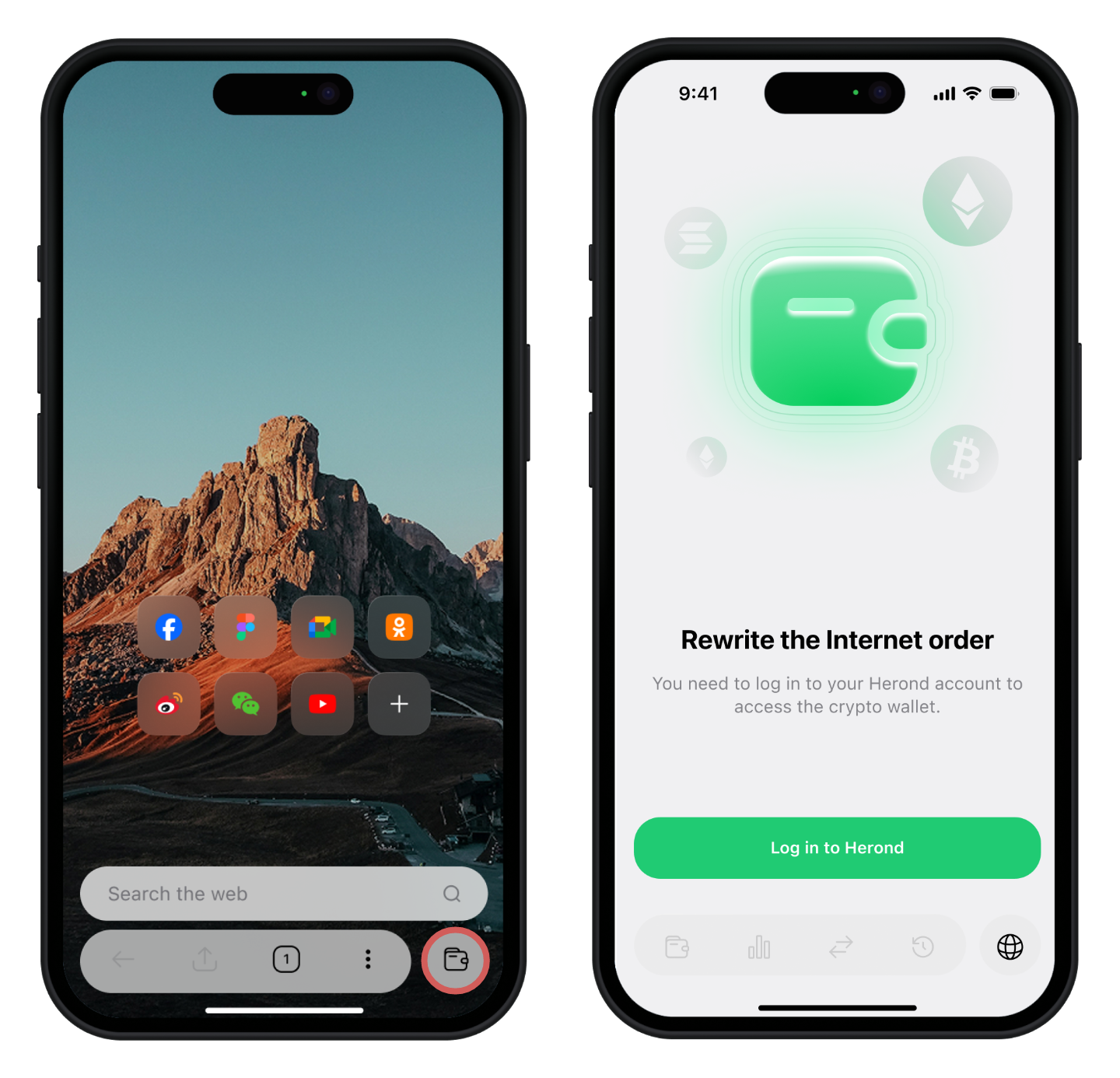
- Open the Herond app on your phone.
- Tap the Wallet icon on the navigation bar to switch to wallet mode.
Step 2: Log In and Start Wallet Setup
When the wallet onboarding screen appears:
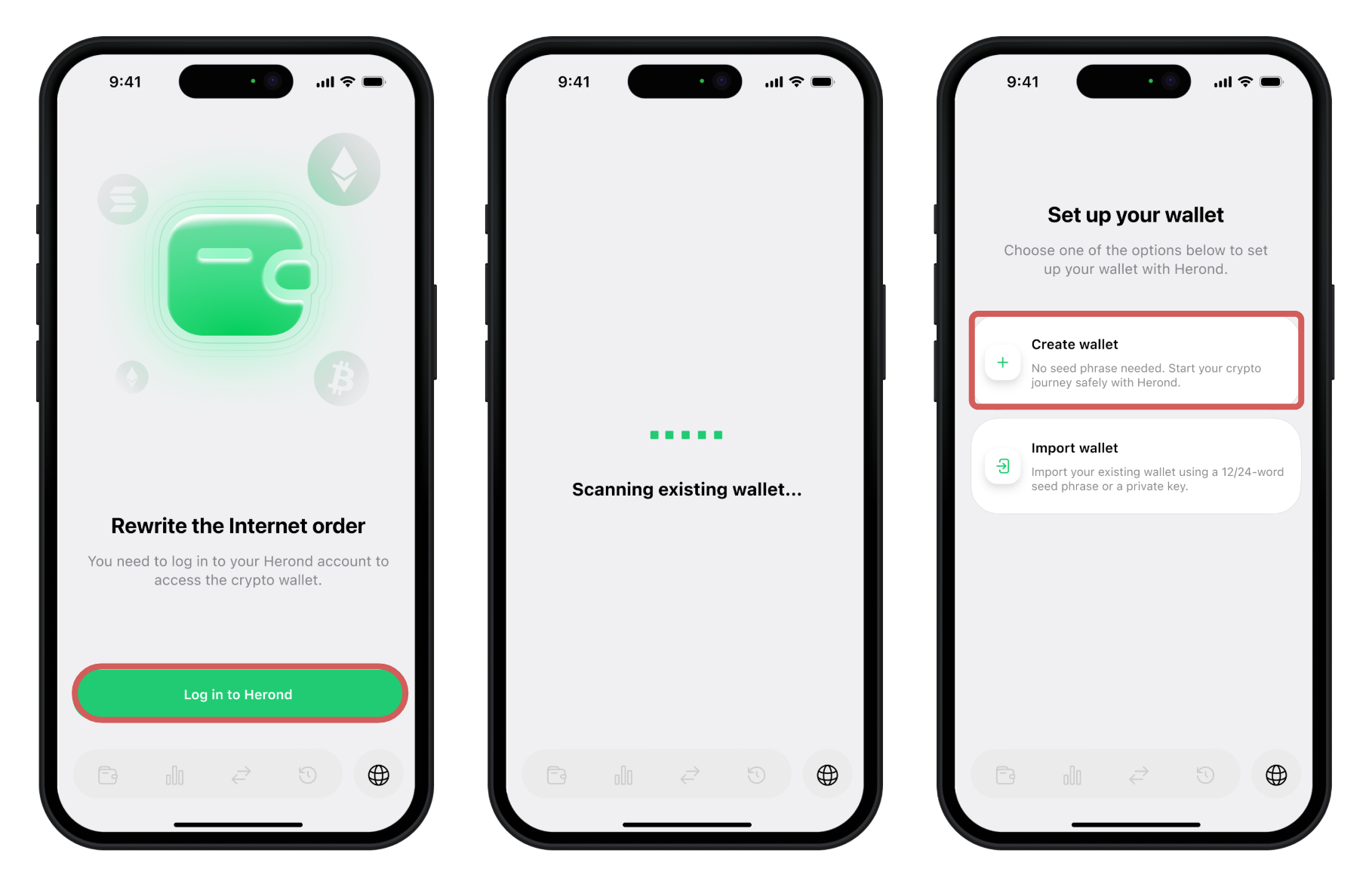
- Tap Log in to Herond.
- Choose one option:
- Create Wallet to set up a new Herond Keyless Wallet
- Import Wallet if you already have a seed phrase or private key
Herond will start preparing your Keyless Wallet.
Step 3: Set Your Device Password
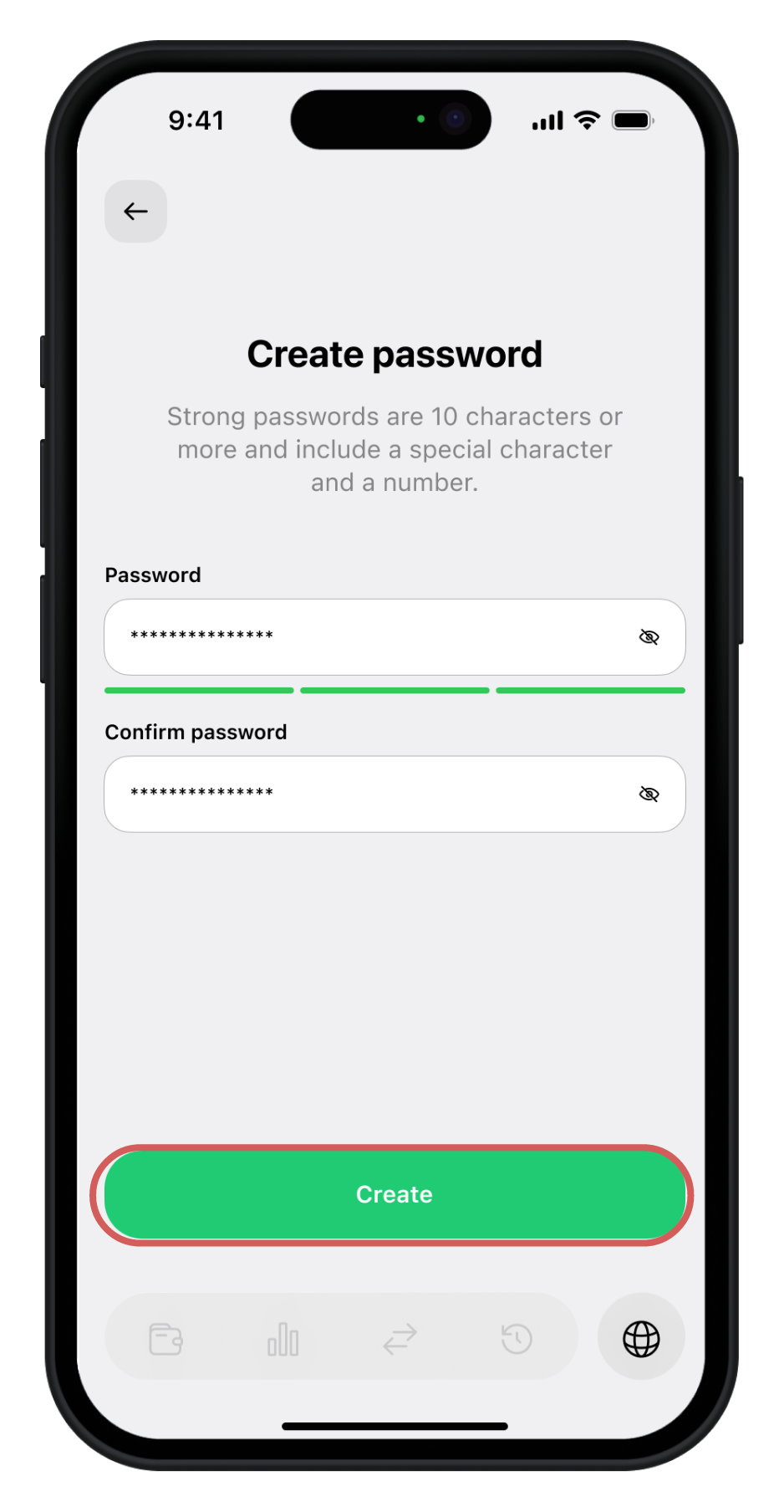
Before entering the wallet, you'll be asked to create a login password.
This password protects your wallet data on this device and is required to unlock it.
Tips for a strong password
- At least 10 characters.
- Mix letters, numbers, and a symbol.
- Avoid simple patterns like "12345678".
- Use a password manager to store it safely.
Enter the password twice, then tap Create.
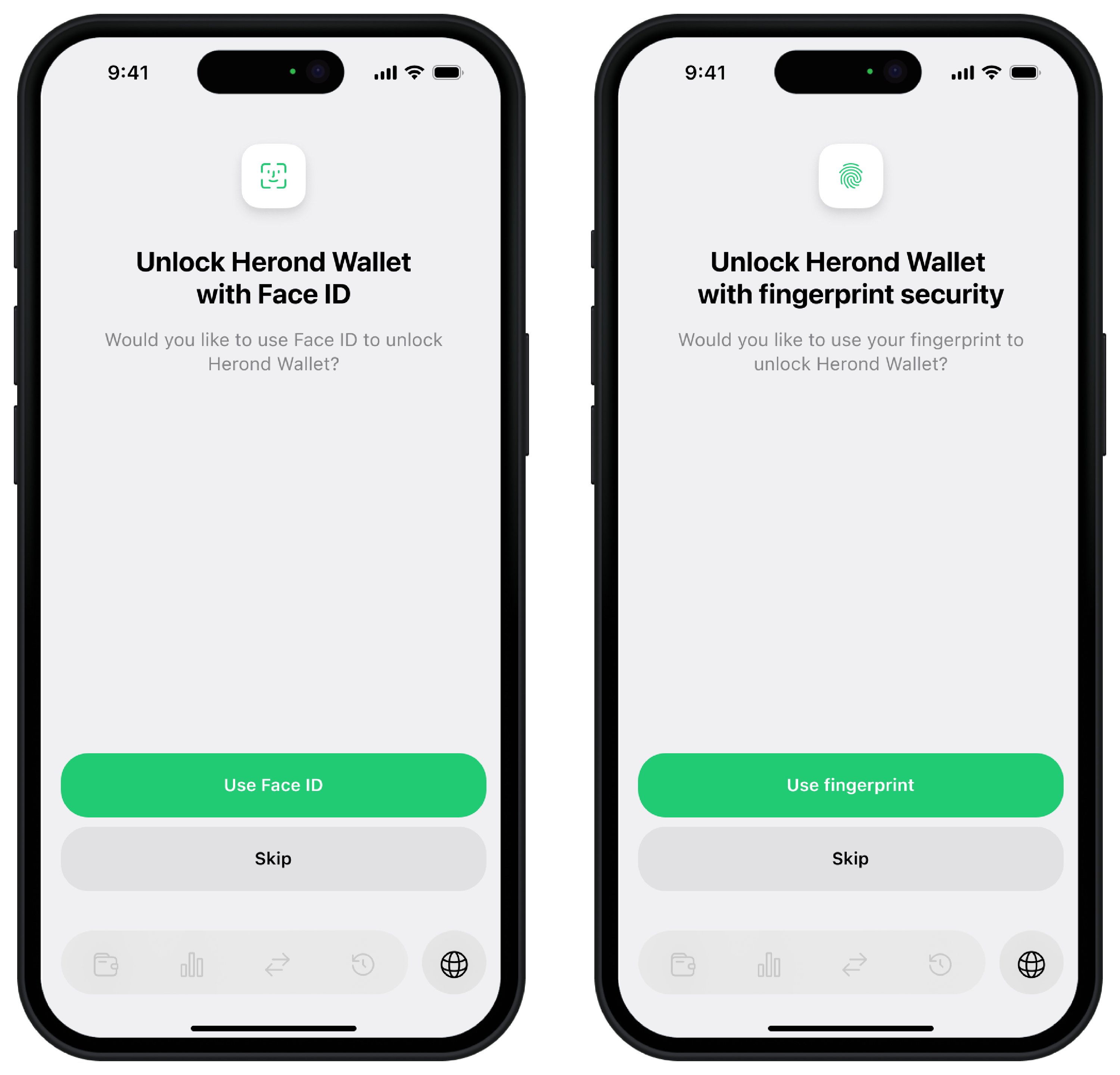
Step 4: Enable Biometrics (Face ID or Fingerprint)
After setting your password, you can choose to unlock your wallet using biometrics.
You may see one of the following, depending on your device:
- Face ID (iPhone / supported Android)
- Fingerprint (Android devices with fingerprint sensors)
Choose your option:
- Tap Use Face ID or Use fingerprint, then confirm with your device
- Or tap Skip to continue using password-only login
info
Using biometrics is recommended for quicker and more secure access.
Step 5: Wallet Setup in Progress
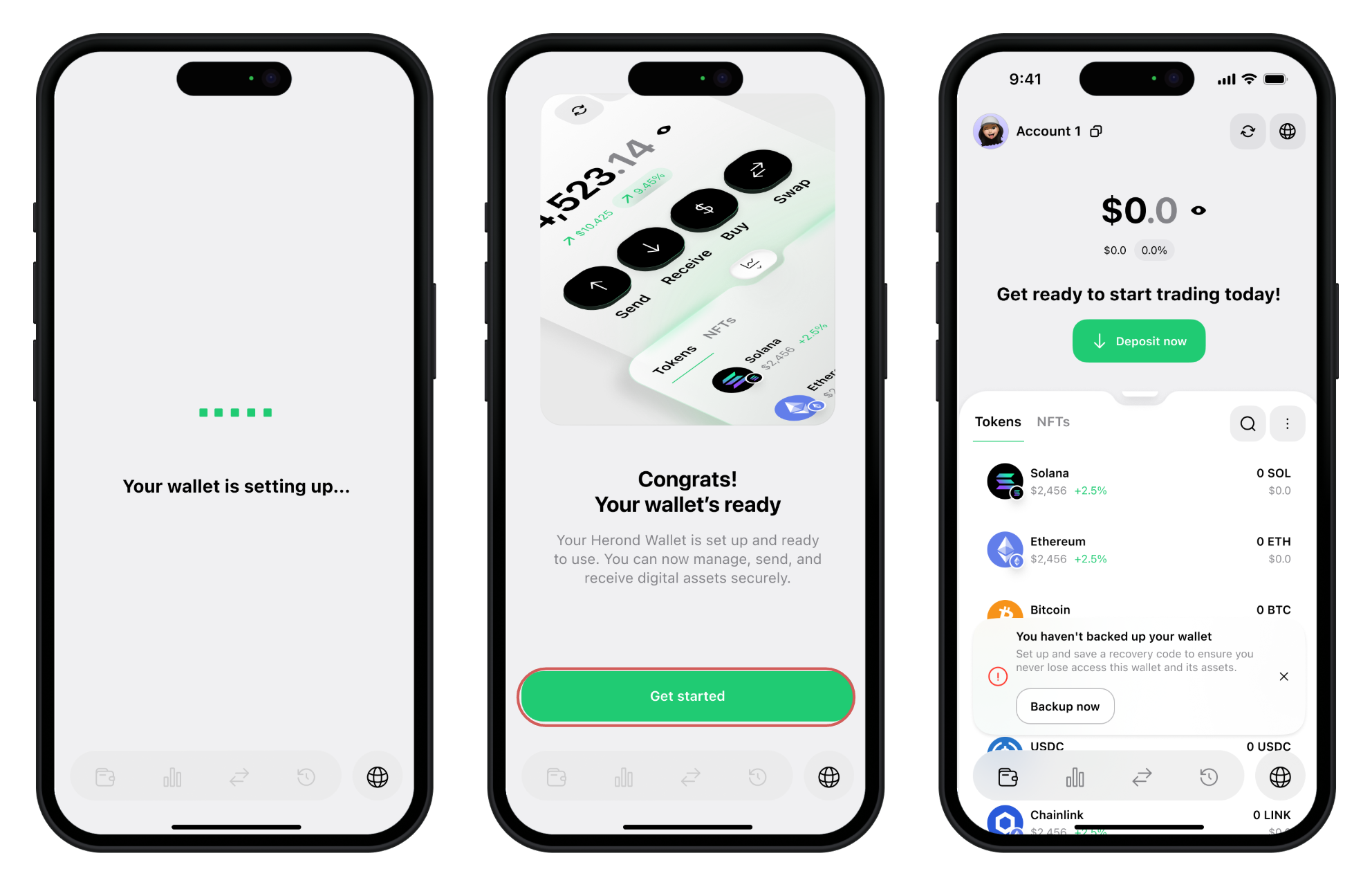
Herond will finish creating your Keyless Wallet. A loading message will appear: "Your wallet is setting up..."
After a few seconds, your wallet will be ready. Tap Get started to open your wallet homepage.